- Published on
Updated
Deploying C# apps on Heroku: a historical guide
Deploying .NET Core applications on Heroku in 2022
Historical guide — reviewed 3 October 2026. These instructions and screenshots document the 2022 workflow. Heroku ended its free hosting plans on 28 November 2022, and it now provides official .NET support. The free-hosting offer and third-party buildpack steps below are preserved as historical context. For a new deployment, follow the current official guide and check the applicable pricing.
In 2022, platforms such as Vercel made deploying JavaScript applications with continuous delivery feel straightforward. I wanted a similar workflow for a .NET Core application.
At the time, Heroku's free tier and a community .NET buildpack offered a way to try this without hosting charges. That free tier is no longer available.
This walkthrough records how I deployed a small proof of concept using that setup.
The original workflow follows below.
I was not sponsored by Heroku or Vercel.
So what is Heroku? 🤓
Heroku is a cloud service platform whose popularity has grown in recent years. Whether you're building a simple prototype or a business-critical product, Heroku's fully-managed platform gives you the simplest path to delivering apps quickly. Heroku is so easy to use that it’s a top choice for many development projects.
In other words it is a PaaS solution that helps developers deploy apps quickly. It does so by connecting to the git provider you use and deploying the application each time you sync the main branch.
The bad and the good news 👎👍
At the time of the original article, Heroku's built-in language support included:
- Node.js
- Ruby
- Python
- Java
- PHP
- Go
- Scala
- Clojure
For this 2022 deployment, I used a third-party buildpack to build C# code. New deployments can use Heroku's official .NET buildpack instead.
Buildpacks automate the build processes for your preferred languages and frameworks.
Step by step process 👀
The following steps and screenshots show my 2022 deployment of a simple ASP.NET Core Web API. They are retained for reference and have not been retested against today's Heroku interface.
The steps are:
- Create your .NET app.
- Add it to a GitHub repository. In my case, I created a repository named "TestHeroku".
- Create an account in Heroku.
After logging in you should see the following screen:

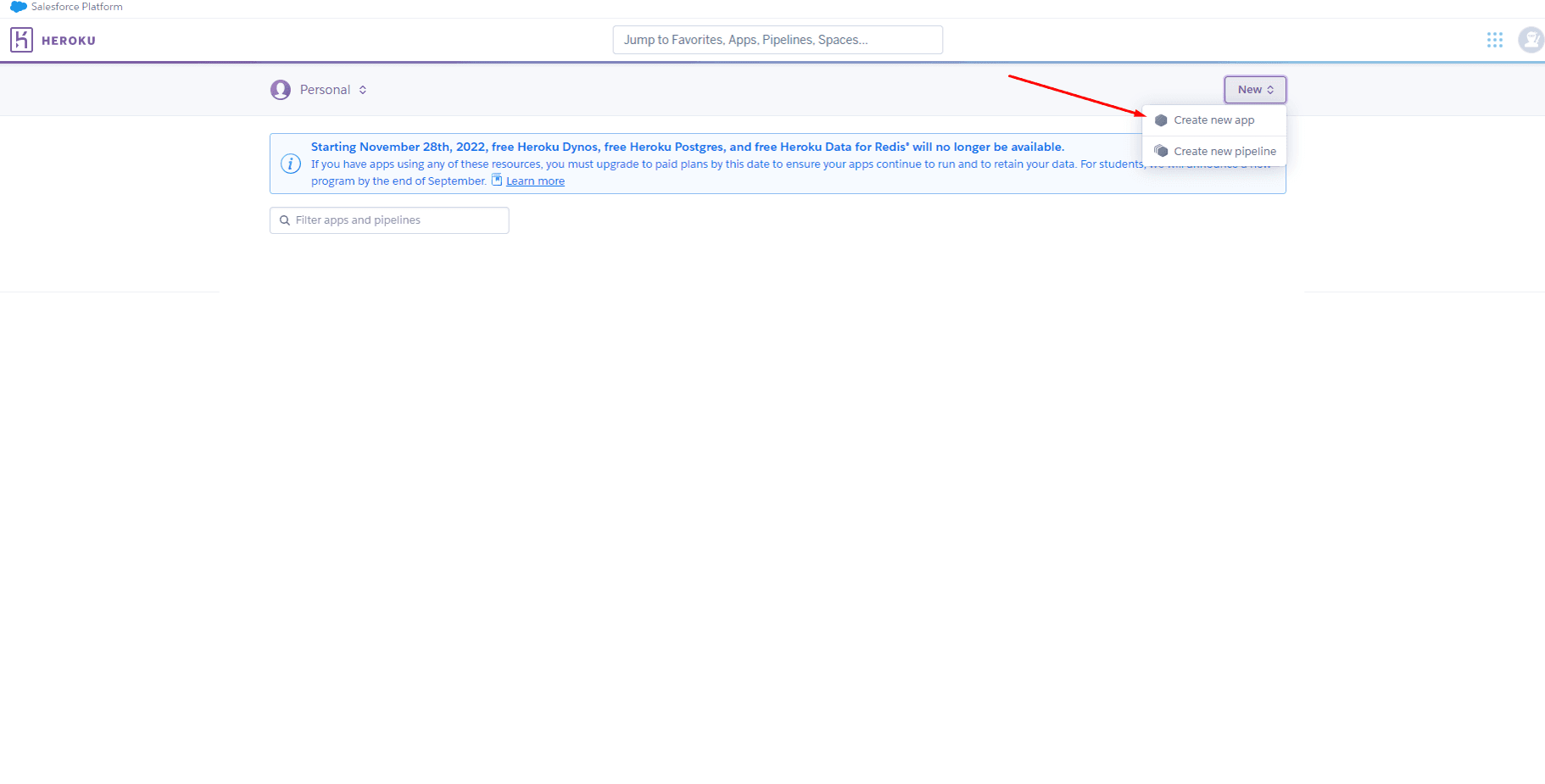
- Click on "Create new project".
- Select how you want to name your app and the closest location to you.
In my case "martins-app-name" (naming done right 😐) and the Europe region.

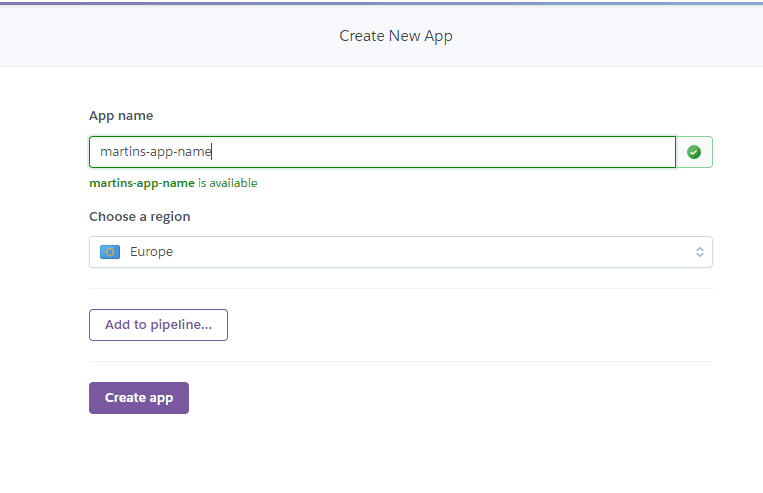
- Click on "Create app".
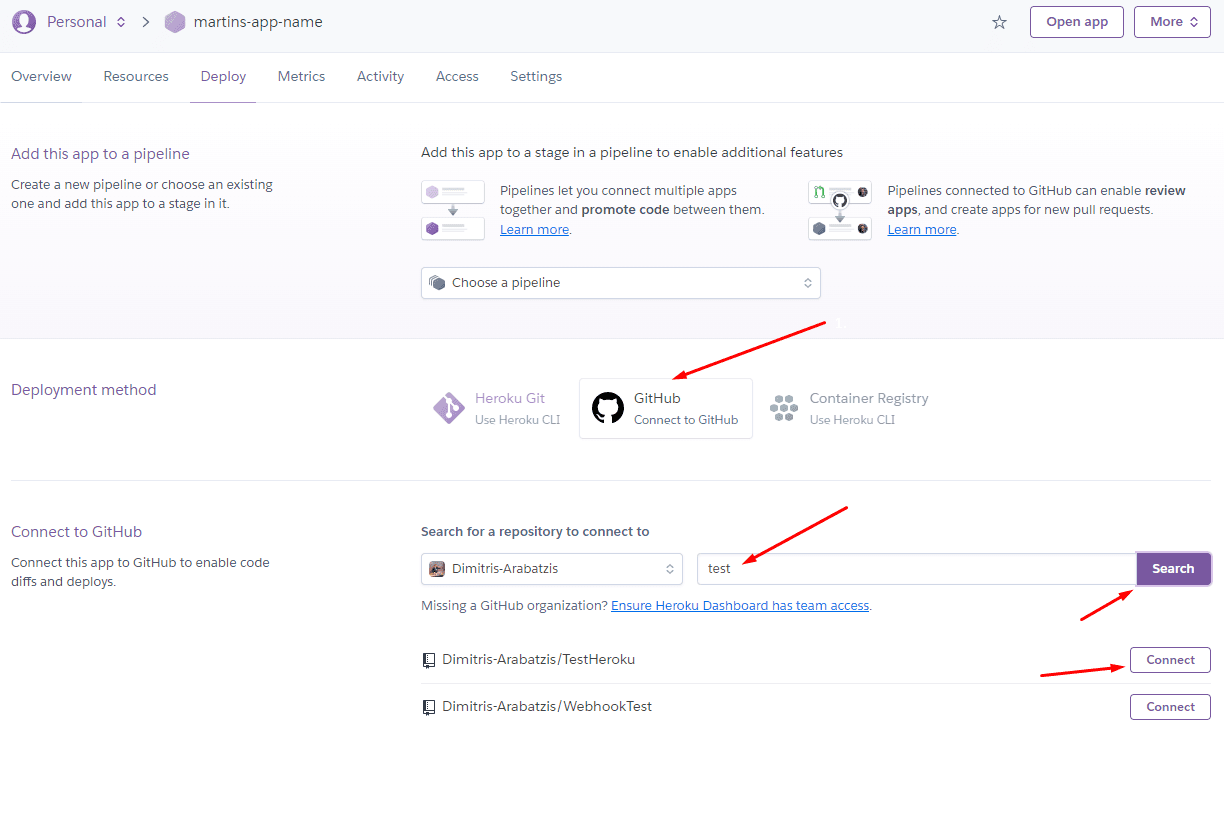
- In the deployment method section, select "GitHub".
- In the Connect to GitHub section, type the name of your repository and click Search. Click Connect after it finds your repository.

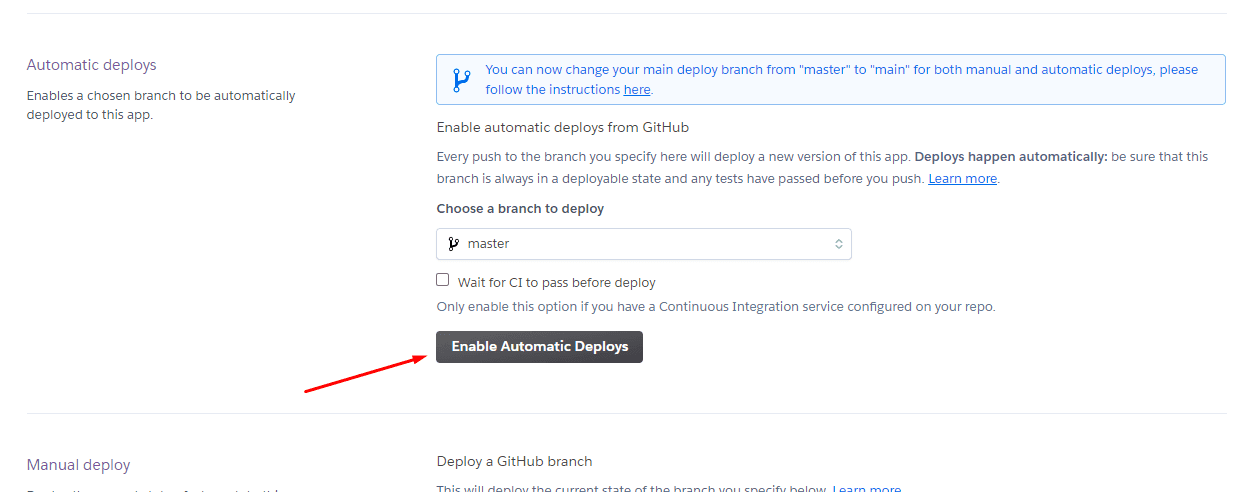
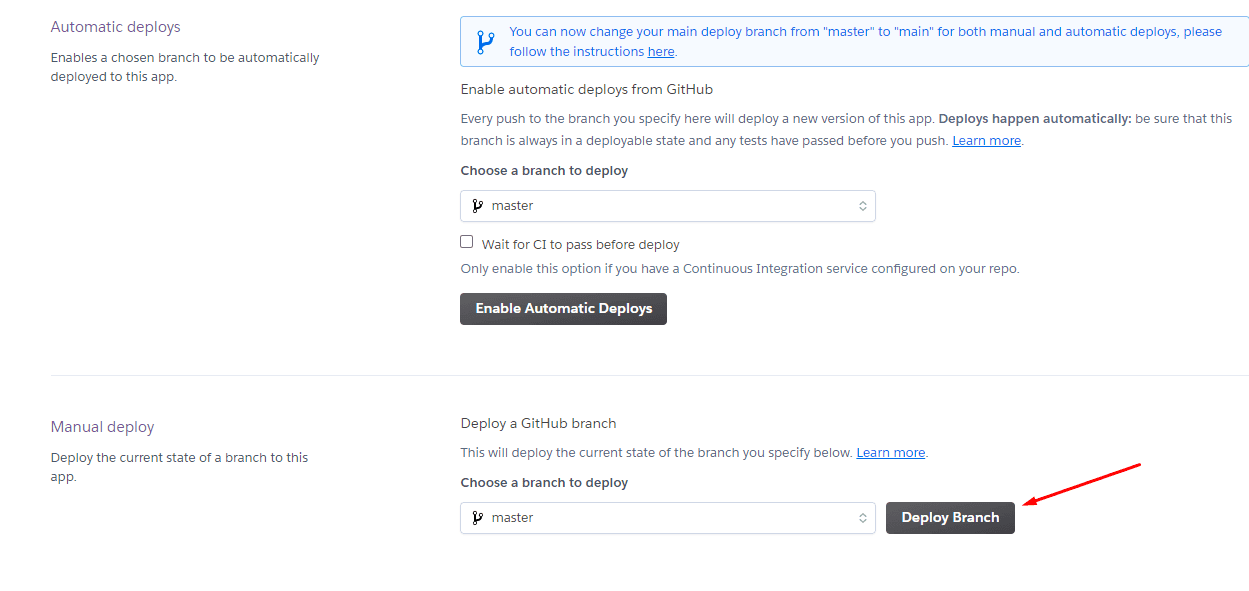
- Click on "Enable automatic deploys". This is the continuous delivery feature. Meaning that each time you do a 'git sync' the app will be automatically redeployed with the latest changes.

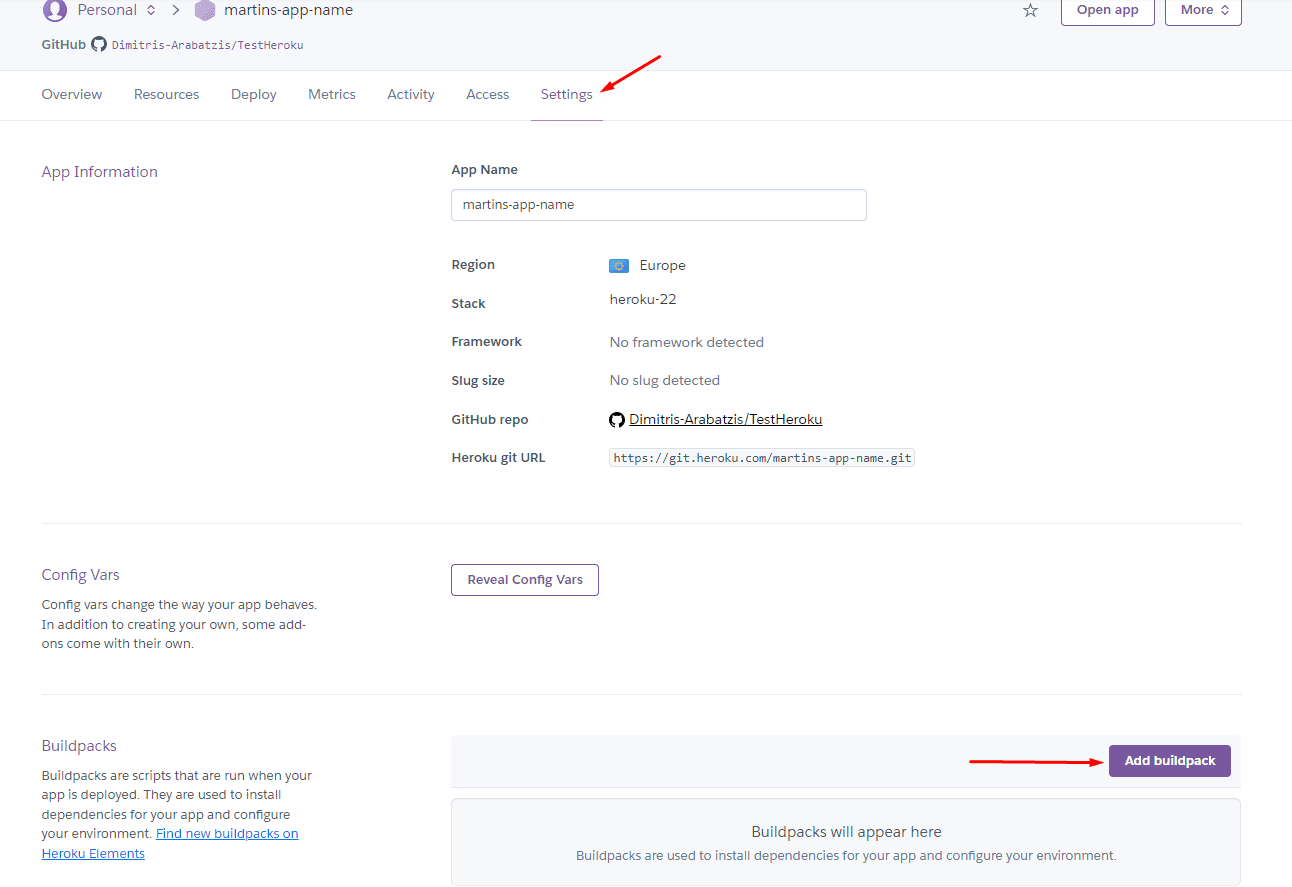
- Click on "Add buildpack" in the buildpacks section under the Settings tab.

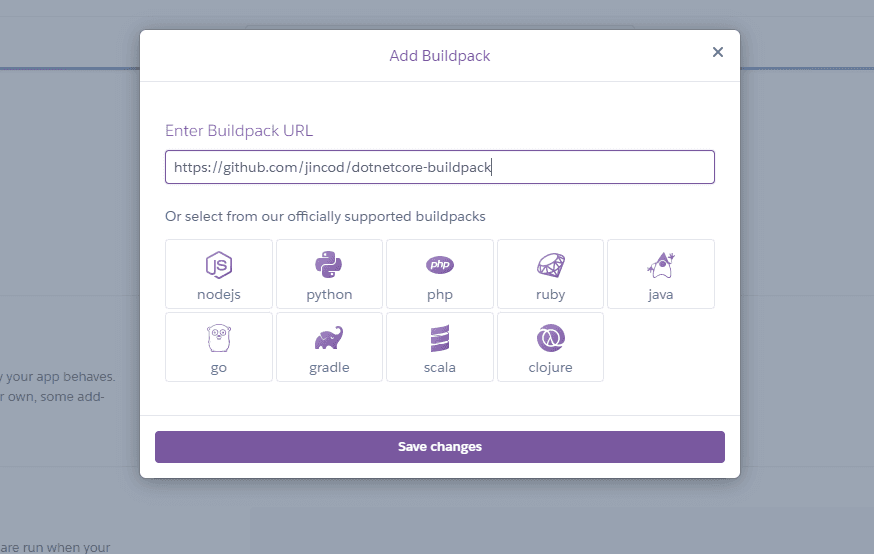
- Use the community .NET buildpack from this 2022 workflow.

- Go back to the deploy tab.
- In the manual deploy section, click "Deploy Branch".

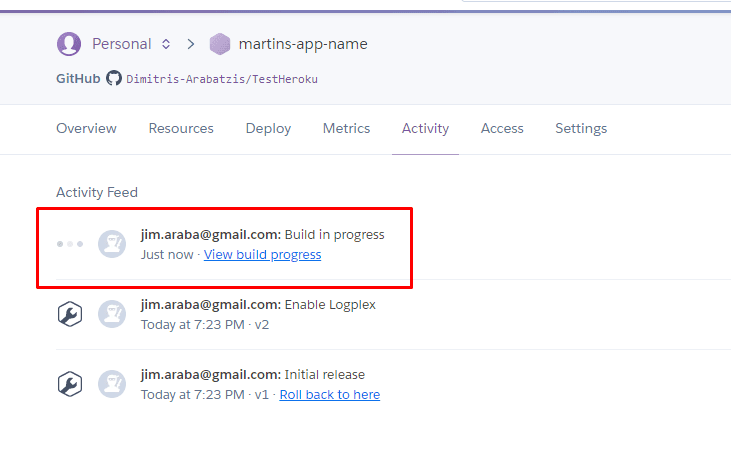
- You are done! You should see the application building in the "Activity" tab. So wait for a couple minutes and your app will be up and running!

Let's test the app 🔥
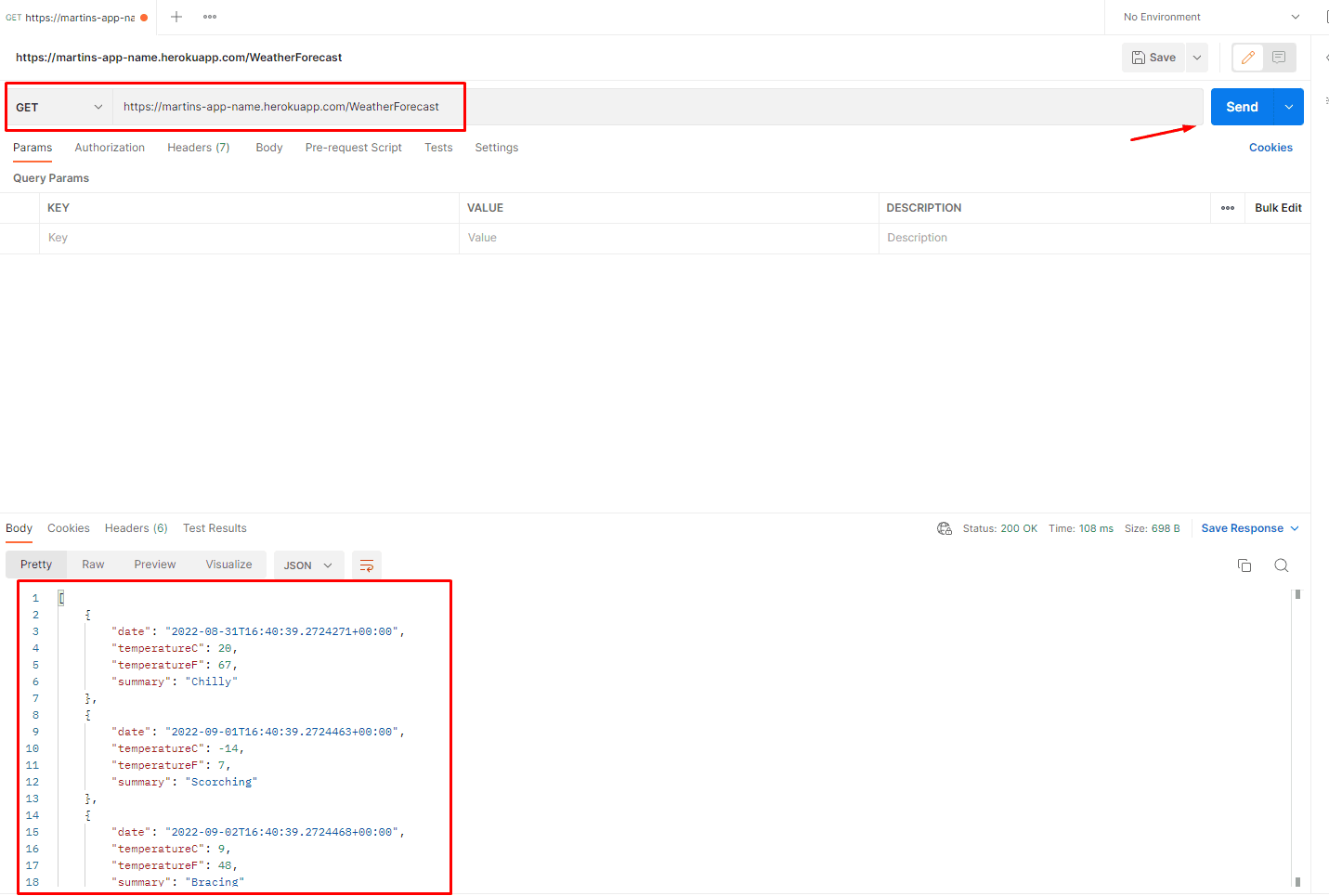
Send an HTTP GET request in Postman using the app's base URL and your API endpoint. The base URL appears in the domain section of the app's settings.

What now? 💥
This setup let me add a custom domain and deploy changes from my main branch. For a new project today, use Heroku's current .NET deployment guide and review its pricing instead of following this archived workflow.